.png&w=256&q=75)
Help center
LFG Docs
Learn how challenges, workouts, points, teams, and friend activity work in LFG.
LFG is a social fitness challenge app for people who want more motivation from friends, visible points, and lightweight accountability.
Start a challenge with friends, log a workout, earn points, and check the leaderboard. The docs below explain each part of that loop without getting into technical implementation details.
Challenges
Join or create the shared goal.
Workouts
Log movement manually or from supported wearables.
Friends
Use invites and activity updates for accountability.
Start here
Start with one challenge, one group, and one workout.
The fastest path through LFG is intentionally simple. Set up the account, get people in, and make the first workout visible.
- 1Create your account and finish onboarding.
- 2Join or create your first challenge.
- 3Invite friends who will keep it active with you.
- 4Log your first workout manually or from a supported wearable.
- 5Check your points and leaderboard.
- 6Turn on notifications so group activity is visible.
Popular guides
The questions most people ask first
Short, task-based guides for the highest-intent moments in the app.
What is LFG?
2 minA quick overview of challenges, workouts, points, friends, and leaderboards.
Create your first challenge
4 minSet up a challenge with a clear name, timeline, and invite path.
Log your first workout
3 minAdd activity manually or from a supported wearable so it counts toward the challenge.
How points work
3 minUnderstand how different workout types become one comparable score.
Invite friends
3 minFind friends, send requests, and bring them into a challenge.
Team challenges explained
4 minHow teams, team selection, team scores, and team leaderboards work.
Connect a wearable
3 minUse supported wearable sync when you want workouts to appear with less manual entry.
Fix missing workouts or points
4 minTry the first checks when a workout, score, invite, or leaderboard update is missing.
Categories
Find help by app area
Browse the main parts of LFG: challenges, workouts, friends, leaderboards, wearables, notifications, privacy, and troubleshooting.
Getting Started
Understand LFG, finish setup, and get into your first challenge without needing a complicated fitness plan.
- LFG is a social fitness challenge app.
- Start with one challenge, one group of friends, and one workout.
- Notifications help you keep up with the people in your challenge.
Challenges
Learn how to create, join, invite, and follow the main challenge loop.
- Challenges can rank people individually or group people into teams.
- Free-for-all challenges can use easier share-style joining.
- Team challenge invitations include team selection when the invite is accepted.
Workouts And Points
See how manual workouts and synced activity become visible challenge progress.
- Workout minutes, calories, and completed workouts are the simple baseline.
- Supported wearables can add more context, such as steps, distance, and heart-rate zones.
- Points make different types of activity easier to compare.
Friends And Invites
Add people, accept requests, and bring friends into the right challenge flow.
- Friends can be found through search and contact matching.
- Challenge invitations appear in the app invitation surfaces.
- Team invites guide the invitee through picking or confirming a team.
Leaderboards And Teams
Understand rank, team scores, recent activity, streaks, and visible progress.
- Leaderboards belong to a specific challenge.
- Teams combine points from active team members.
- Titles like Rookie, Foot Soldier, and GOAT make progress easier to spot.
Wearables
Connect supported wearables when you want activity to sync without manual entry.
- Wearable sync is optional.
- Provider availability and behavior can vary by platform and account setup.
- You can always log a workout manually if sync is not available.
Notifications And Settings
Keep group activity visible while controlling when and how LFG notifies you.
- Notifications help you keep up with your group.
- You can adjust invite, workout, leaderboard, streak, and reminder notifications.
- Quiet hours reduce late or unwanted pings.
Privacy And Data Visibility
Know what friends and challenge members can see before you join in.
- Challenge members can see your challenge progress, ranking, and activity needed for competition.
- Wearable permissions are controlled by the app and the connected platform.
- For legal details, use the full Privacy Policy.
Troubleshooting
Try the simple fixes first when something does not show up where you expect.
- Refresh the relevant screen first.
- Check permissions and the selected challenge.
- Contact support if the same issue continues.
Visual examples
What the main flows look like
These examples use demo screens and focus on app behavior rather than generic fitness imagery.
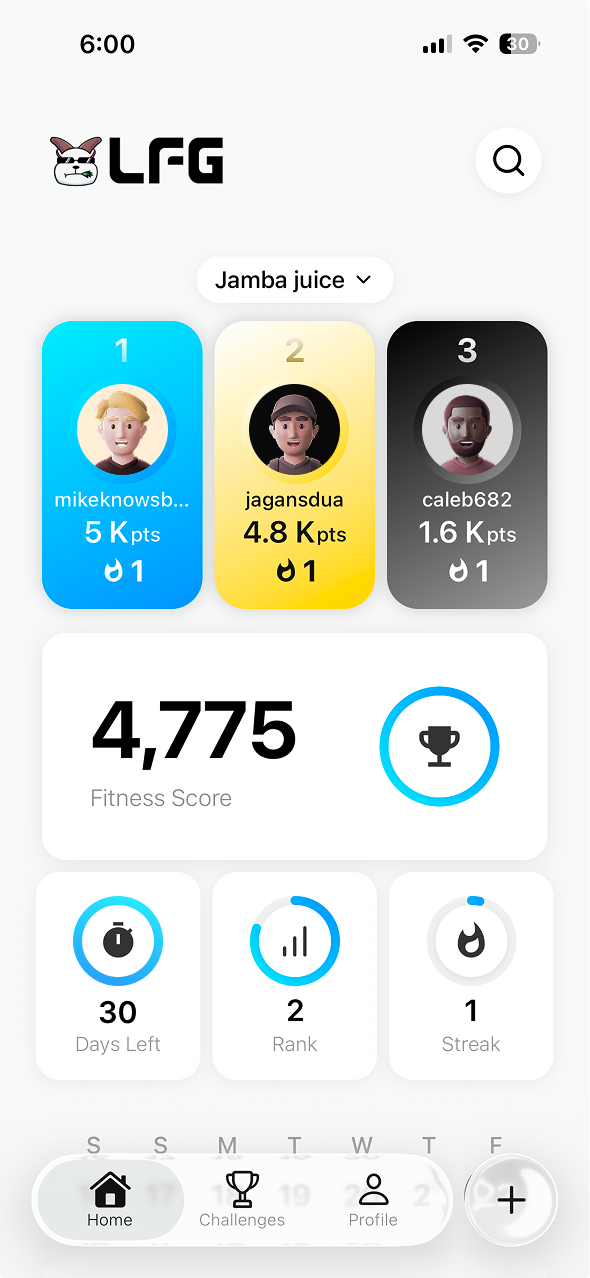
Create or join
Start with one challenge and a group that will notice when you show up.
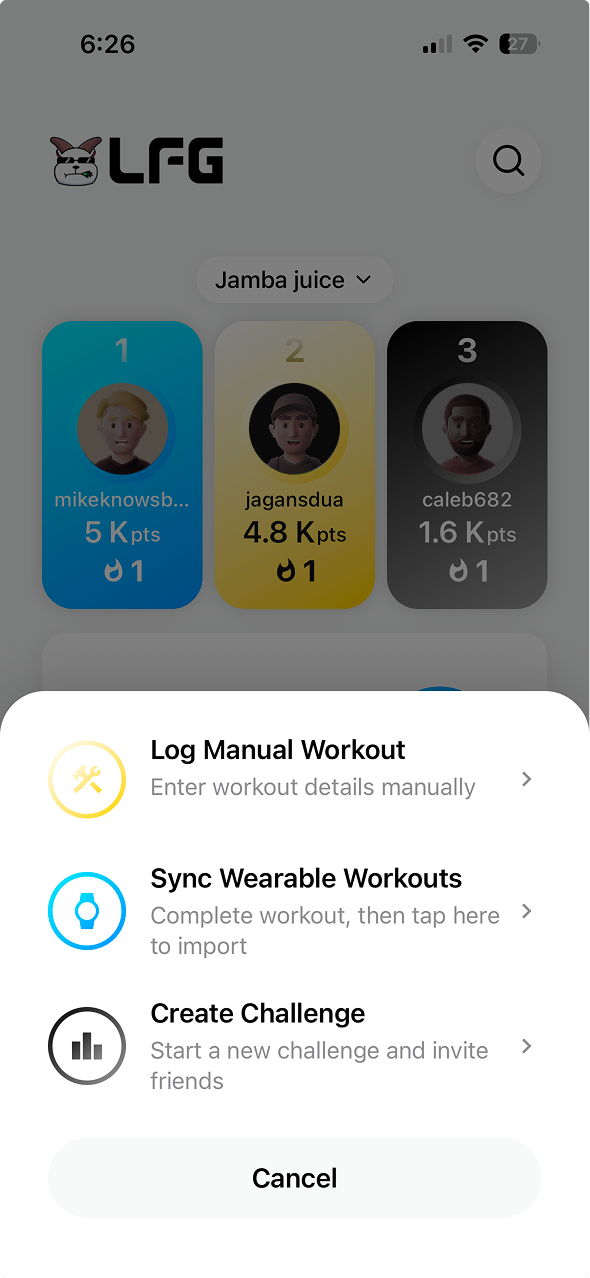
Log the workout
Manual logging and supported wearable sync both lead back to challenge progress.
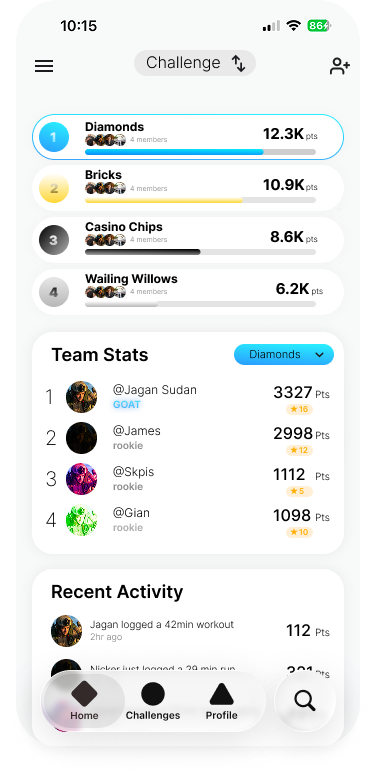
Check the group
Leaderboards, teams, and recent activity show what changed after people move.
Guide answers
Quick answers and next steps
Each guide starts with the short answer, then gives practical steps and common fixes.
What is LFG?
2 min read
Short answer
LFG is a social fitness challenge app. You join or create a challenge, log workouts, earn points, and stay accountable with friends.
When to use this
Use this guide when you are opening LFG for the first time or explaining it to a friend who is not already into fitness apps.
Steps
- 1Create your account and complete the short onboarding flow.
- 2Join or create one challenge with people you know.
- 3Log a workout manually or connect a supported wearable.
- 4Watch your points, rank, and group activity update inside the challenge.
What happens next
You should understand the main loop: friends create accountability, workouts create points, and the leaderboard keeps progress visible.
Common issues
- I am not very fit yet.: Start with one simple activity. Walks, gym sessions, sports, and other workouts can all count.
- I do not have a wearable.: Use manual workout logging. Wearables are optional.
Related
Create your first challenge
4 min read
Short answer
Create a challenge when you want a shared goal with friends. Pick the challenge style, add the basics, invite people, and start tracking progress.
When to use this
Use this when you want to be the person who starts the group challenge, sets the tone, and invites the first participants.
Steps
- 1Open the create challenge flow in the app.
- 2Add a name, description, duration, and participant limit.
- 3Choose whether the challenge is individual or team-based.
- 4Invite friends from the challenge invite flow.
- 5Check the challenge overview before people begin logging workouts.
What happens next
Participants can join, log workouts, and see progress in the challenge leaderboard. Team challenges route invitees through team selection.
Common issues
- A friend joined the wrong flow.: Use the direct team invite path for team challenges so they can choose the right team.
- The challenge feels too intense.: Shorten the duration, keep the group small, and explain that any workout can help.
Related
Log your first workout
3 min read
Short answer
Log a workout after you move. Add the activity type, duration, and any available details so LFG can turn the effort into points.
When to use this
Use this after a walk, gym session, sport, HIIT workout, or any other activity you want to count toward a challenge.
Steps
- 1Open the workout action in the app.
- 2Choose manual logging or select a synced workout if one is available.
- 3Pick the workout type, such as cardio, strength, HIIT, sports, or other activity.
- 4Add duration, calories, distance, and intensity when you have them.
- 5Save the workout and check the challenge for points and leaderboard changes.
What happens next
The workout appears in your history and can move your challenge score. Some synced details may take a moment to settle after saving.
Common issues
- I forgot some details.: Add what you know. Duration and completed workout details are enough to start.
- I logged it in the wrong challenge.: Open the workout or challenge history and check whether editing or removing is available.
Related
How points work
3 min read
Short answer
Points make different types of activity easier to compare. A quick workout, a walk, a gym session, or a synced wearable workout can all move your score.
When to use this
Use this when you want to know why your workout changed your score or why different activities can still compete on the same leaderboard.
Steps
- 1Log a workout or sync one from a supported wearable.
- 2LFG looks at simple effort signals like minutes, calories, and completed workouts.
- 3When wearable metrics are available, steps, distance, and heart-rate zones can add more context.
- 4Your points are added to the relevant challenge leaderboard.
What happens next
Your challenge rank can change after points are applied. The goal is to compare effort without forcing everyone into the same workout type.
Common issues
- My points changed after saving.: Synced details can update after the first save, especially when wearable data finishes syncing.
- A workout earned fewer points than expected.: Check that duration, calories, distance, or synced wearable details are present.
Related
Invite friends
3 min read
Short answer
Add friends through search or contact matching, then invite them into a challenge from the challenge invite flow.
When to use this
Use this when your challenge needs people or when someone has asked to join your group.
Steps
- 1Open the friends area in the app.
- 2Search by username or email, or use contact matching if available.
- 3Send a friend request and wait for the person to accept.
- 4Open your challenge and choose the invite action.
- 5Select the friends you want to invite.
What happens next
Free-for-all invitations can be accepted directly. Team challenge invitations take the invitee through team selection.
Common issues
- I cannot find a friend.: Check the spelling, try their email, or ask them to finish account setup first.
- They did not receive the invite.: Ask them to check the invitations area and confirm notifications are allowed.
Related
Team challenges explained
4 min read
Short answer
Team challenges group people together so everyone can contribute. Team rankings use the combined progress from active team members.
When to use this
Use this when you want group accountability without making every person compete only as an individual.
Steps
- 1Create or join a team challenge.
- 2Accept the invite and choose a team when prompted.
- 3Log workouts as usual.
- 4Check team rankings, member stats, and recent activity in the team challenge view.
- 5Use friend activity and leaderboard changes to keep the group moving.
What happens next
Your individual workouts contribute to your team score. The team leaderboard shows how groups compare inside that challenge.
Common issues
- Someone needs a team assignment.: Use the team challenge invite flow so they can select or confirm their team when accepting.
- Team score looks lower than expected.: Confirm that team members logged workouts inside the same active challenge.
Related
Connect a wearable
3 min read
Short answer
Connect supported wearables in the app if you want eligible workouts to sync. Wearable sync is optional, and availability can vary by platform and account setup.
When to use this
Use this when you already track activity on a phone, watch, or fitness device and want LFG to use that activity in challenges.
Steps
- 1Open settings or the wearable connection area in the app.
- 2Choose a supported wearable or health data source available on your device.
- 3Approve the requested permissions.
- 4Return to LFG and sync recent workouts when the option is available.
- 5Log or confirm the workout so it can count toward the challenge.
What happens next
Synced workouts can appear in the workout flow. You can still log activity manually whenever wearable sync is unavailable.
Common issues
- A workout does not appear.: Check permissions, open the provider app, then refresh or sync recent workouts in LFG.
- The provider is not listed.: Use manual logging and check the app later, since provider availability can vary.
Related
Fix missing workouts or points
4 min read
Short answer
Start by refreshing the screen, checking the selected challenge, and confirming that the workout or wearable sync finished.
When to use this
Use this when a workout is missing, points did not update, a leaderboard looks stale, or an invite is not where you expected.
Steps
- 1Refresh the challenge, workout history, or invitations screen.
- 2Confirm you are looking at the correct challenge and date range.
- 3For wearable workouts, check that permissions are still enabled and recent activity has synced.
- 4For manual workouts, confirm the workout was saved and has the right activity details.
- 5If the issue continues, contact support with the challenge name, workout time, and what you expected to see.
What happens next
Most missing items appear after the right screen refreshes or sync finishes. Support can help when the same issue keeps happening.
Common issues
- Leaderboard looks stale.: Refresh the challenge and check whether the workout was saved to that challenge.
- Invite is missing.: Check the invitations area and ask the sender to confirm they invited the correct account.
Related
Notifications
Keep motivation visible, then tune the noise down.
Notifications help you keep up with challenge invites, friend activity, leaderboard changes, streak milestones, and reminders. You stay in control through notification settings and quiet hours.
Challenge invites
See when someone brings you into a challenge.
Friend activity
Know when people in your group complete workouts.
Leaderboard changes
Catch rank and score movement inside a challenge.
Quiet hours
Reduce late or unwanted notifications.
Privacy
Know what people can see before you join.
Challenge participation makes relevant fitness progress visible to challenge members. Members can see progress, ranking, and activity needed for the competition.
Friends
Friends help you find people and send challenge invites.
Challenge members
Members can see challenge progress and ranking.
Wearable permissions
Connected platforms control which wearable data is shared.
Profile visibility
Use settings and the Privacy Policy for more detail.
Troubleshooting
Try this first
Plain-English checks for missing workouts, points, invites, friends, or notifications.
My workout is missing
- 1Refresh workout history.
- 2Check the correct challenge and date.
- 3For synced workouts, confirm wearable permissions.
My points did not update
- 1Open the challenge again.
- 2Confirm the workout saved.
- 3Wait for synced wearable details to finish updating.
I did not receive an invite
- 1Check the invitations area.
- 2Confirm the sender used the right account.
- 3Turn on challenge notifications.
I cannot find a friend
- 1Search by username.
- 2Try their email.
- 3Ask them to complete account setup.
Need more help?
Contact LFG support
Tell us what you were trying to do, the challenge name, and what you expected to see. Use demo screenshots only when sharing examples.
Contact support